A TIFF file is a raster image that stores its pixels together with a directory of tags describing them: width, colour, bit depth, compression and page count. The name stands for Tagged Image File Format, and .tif and .tiff name the same thing. Scanners, print workflows and archives use it because the format can hold a picture without losing detail, and can hold several pages in one file.
Knowing what is a TIFF file starts with that directory, which most explanations leave out. It is the part that decides how a TIFF behaves: one TIFF of a 512 by 512 picture is 815,556 bytes uncompressed and 135,220 bytes when it stores JPEG data, and one opens in every viewer while another needs a newer decoder.
Most readers meet the format when something refuses a file, so this article ends with that refusal and a TIFF that will not open. The reason to start with the container is that the extension predicts almost nothing about the file behind it.
Quick answer
A TIFF file is a raster image container: pixels plus tags for colour, bit depth, compression and page count. In its usual forms it is lossless, which is why scanners, print shops and archives use it. It is usually much larger than a JPEG or PNG, and Chrome, Edge and Firefox cannot display one.
The rest of this article opens the container. It covers where the format came from, how the header and the directory are laid out, what the tags can hold, why the files grow so large, and where a TIFF still opens today. The last section is the one for a reader who already has a file that will not.
What TIFF stands for and where the format came from
TIFF stands for Tagged Image File Format, and its two extensions name the same format. Aldus Corporation released it on 12 September 1986 for desktop scanning, and Adobe has maintained it since it acquired Aldus in 1994 (Wikipedia, TIFF).
The reference version is still TIFF 6.0, published in June 1992. The Library of Congress keeps a format description for that revision and notes that files conforming to earlier versions are valid 6.0 files (Library of Congress, TIFF Revision 6.0). The registered media type is image/tiff, and both extensions resolve to it.
Continuity like that is unusual for a format of this age. A scanner written after 2000 can produce a file that a 1992 reader already knows how to open, because the baseline never moved far from where Aldus left it. The extensions changed with the platforms; the directory and its tags did not.
What is a TIFF file made of?
A TIFF file is made of a short header, one or more image file directories, and the image data those directories point to. Only the header has a fixed position. Everything after it is found by following offsets, which is what allows a file to hold several images and still be read in order.
The header is eight bytes long and does one job: it tells a reader how to read the rest. The first two bytes are either II, for little-endian byte order, or MM, for big-endian. The next two hold the number 42, which identifies the file as TIFF, and the last four hold the offset of the first image file directory.
The fixed part ends there. A reader that finds the number 42 in the two bytes after the byte-order mark knows it is looking at a TIFF rather than at a file renamed to .tif. Everything after the header is located by offsets, which is why a TIFF can be written by a scanner, read by an editor and still keep the same bytes.
The header and the directory
An image file directory, usually shortened to IFD, is a table of tags. It begins with a two-byte count, then holds one entry per tag, and ends with a four-byte offset to the next directory, or to zero when this is the last one. Its entries are the only place the file’s description exists.
Each entry is twelve bytes: a two-byte tag number, a two-byte data type, a four-byte count and four bytes holding the value or the offset where the value lives (TIFF 6.0 specification). The four-byte value field is why a wide value is stored elsewhere and the entry only points at it.
The specification defines more than 70 tags, and most files use only a handful of them. The rest are there for colour management, printing, document scanning and applications that add private tags of their own. That open list is why two TIFF files can behave differently while sharing an extension. It is also why there is no single answer to what is TIFF format: the tags decide.
| Tag | Number | What it decides |
|---|---|---|
| ImageWidth | 256 | How many pixels across |
| BitsPerSample | 258 | How many bits each channel carries |
| Compression | 259 | How the pixel data is packed |
| PhotometricInterpretation | 262 | What the samples mean: grey, RGB, CMYK, palette |
| StripOffsets | 273 | Where each strip of pixels begins |
| RowsPerStrip | 278 | How many rows each strip holds |
| XResolution | 282 | The intended horizontal print resolution |
| ExtraSamples | 338 | How an alpha channel beside the colour is read |
The table is a slice rather than a summary. A reader does not need all 70 tags to understand a TIFF, but the eight above are the ones that explain why one file opens, one is small, and one looks wrong.

The tags that decide what you see
Four tags decide most of what a reader sees: the width and length, the number of samples per pixel, the bits per sample, and the photometric interpretation. The others refine that picture or describe the file rather than the image.
Two tags deserve their own mention. XResolution and YResolution, together with ResolutionUnit, record the intended print size rather than the number of pixels; a scan at 300 dpi carries 300 in a tag, not 300 times the detail. ExtraSamples says whether an alpha channel is premultiplied with the colour or stored separately, and it is why transparency in a TIFF survives some conversions and not others.
Strips, tiles and pages
A TIFF stores its pixels in strips or tiles, and the directory points at each one by offset and byte count. A strip is a band of rows: StripOffsets says where each band begins, RowsPerStrip says how tall it is, and StripByteCounts says how long it is. A tiled TIFF divides the image in both directions instead, using TileWidth, TileLength and TileOffsets. Both layouts let a reader decode part of a large image without holding all of it in memory.
Pages use the same mechanism. A multi-page TIFF has one directory per page, and the next-directory offset at the end of each IFD walks the reader to the following one. That is how a fax of ten pages travels as one file. PNG has no such chain, which is why splitting a multi-page file produces one PNG per page rather than a single output.
What a TIFF can hold
Ask what is a TIFF image and the answer is capacity: 1-bit line art, 8-bit colour, 16-bit greyscale, CMYK, transparency and several pages. The Library of Congress notes that 8-bit grayscale and 24-bit RGB are common in practice, while some workflows create files with more than eight bits per channel. The format permits all of it; the file in hand permits only what its tags describe.
Bit depth and colour
Bits per sample sets how many tones each channel can carry, and photometric interpretation says what those samples mean. One bit per sample is black or white, which is what a fax uses. Eight bits give 256 levels per channel, and sixteen give 65,536, which is the depth a medical scan or a film scanner may need.
Floating-point samples are possible too, through the SampleFormat tag, and they are the reason a TIFF can hold scientific data that an ordinary image viewer cannot display. The photometric tag names the colour model: greyscale, RGB, CMYK, palette, YCbCr or Lab.
CMYK is why print shops ask for TIFF, and palette is why an old document scan can look wrong in a viewer that ignores its colour map. Alpha is carried by an extra sample beside the colour, and support for it varies between programs, which is the practical difference between a transparent TIFF and a transparent PNG.
Compression: lossless, lossy and none
The Compression tag decides whether a TIFF is lossless, and it is the tag that makes the extension’s reputation misleading. The 6.0 specification defines no compression, PackBits, LZW, CCITT Group 3 and Group 4 for bilevel images, and JPEG; Deflate arrived later as a widely supported extension. A scanner picks one of these, and the choice travels with the file as a number.
| Value | Scheme | Lossless | Typical content |
|---|---|---|---|
| 1 | None | Yes | Masters, files edited many times |
| 5 | LZW | Yes | Scans, documents |
| 8 | Deflate | Yes | General images, scans |
| 32773 | PackBits | Yes | Bilevel line art |
| 3, 4 | CCITT Group 3 and Group 4 | Yes | Fax pages |
| 7 | JPEG | No | Photographs, smaller files |
The last row is the exception that catches readers. A TIFF that stores JPEG-compressed data is already lossy before anything is converted, and a reader that opens it will show the JPEG’s artefacts rather than the scanner’s pixels. That is the one case where the claim “TIFF is lossless” is false.
File size shows the same split. In our own conversion set, a 512 by 512 RGB TIFF measured 815,556 bytes uncompressed, 414,416 bytes with Deflate, and 135,220 bytes with JPEG. The Deflate file and the uncompressed file hold the same pixels; the JPEG file does not.
Is TIFF a vector file?
TIFF is not a vector file. It stores a raster image: a grid of pixels, each with a colour value, and the tags describe that grid. A vector format stores geometry instead - points, lines and curves that a program redraws at any size. SVG, EPS and AI are vector formats; TIFF is not one of them.
The confusion comes from where a TIFF is made. Illustrator can export a TIFF, and a print shop may ask for one, but the export rasterises the artwork at the resolution you choose. The resulting file holds pixels, not the paths it came from. That is also why a TIFF of a logo cannot be enlarged like an SVG: past its pixel grid, there is nothing to redraw.
A PDF can hold both vector art and raster images, which is why it is the format for a document that must stay sharp at any size. A TIFF is the raster half of that pair. The Library of Congress describes it as “a tag-based file format for storing and interchanging raster images” (Library of Congress, TIFF Revision 6.0).
Why TIFF files are so large
TIFF files are large because the format stores every pixel the image has, and compression is a setting rather than a promise. An 8.5 by 11 inch page scanned at 300 dpi is 2,550 by 3,300 pixels, which is 8,415,000 pixels. At 24 bits per pixel, that is 25,245,000 bytes, or about 24 MiB, before any compression.
Scan at 600 dpi and the same page becomes four times that, near 96 MiB. That is the arithmetic behind a scan that arrives as a 25 MB attachment, and the reason the number is not a compression failure. The format can shrink it, but only if the Compression tag says so.
It also explains why a TIFF can be small: the Deflate measurement above roughly halved the file, and a JPEG-compressed TIFF shrank it by more than 80 percent. The classic format’s offsets are 32 bits wide, so a single TIFF cannot address past 4 GB; BigTIFF, a variant with 64-bit offsets, exists for files beyond that point (Library of Congress).
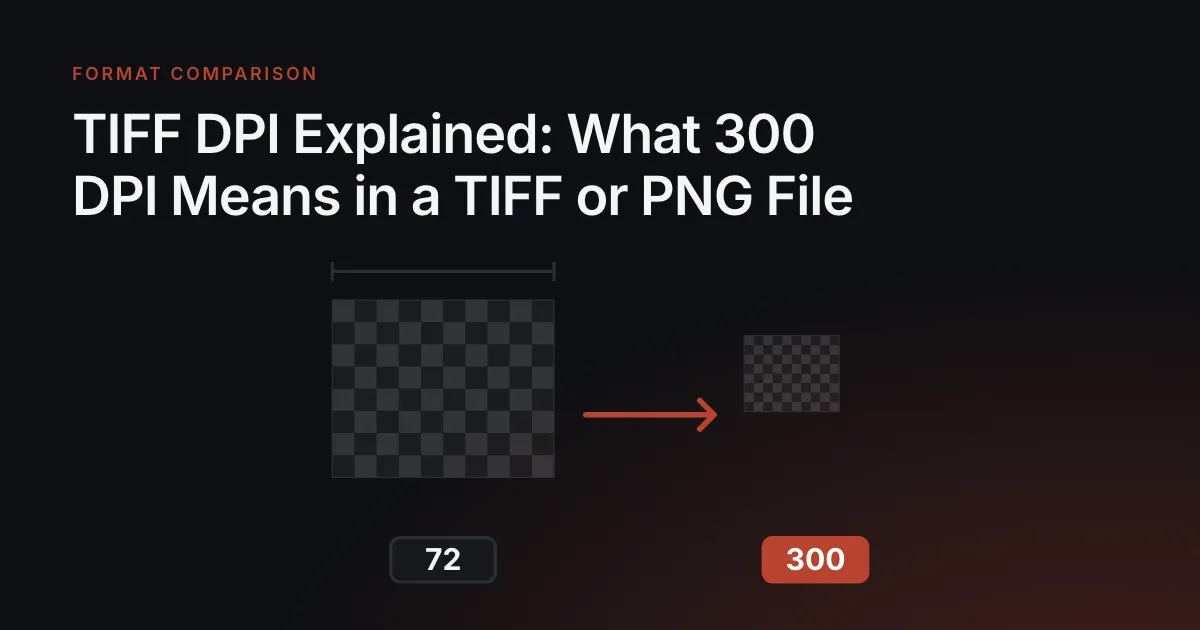
The dpi figure is a frequent source of confusion. A 300 dpi TIFF and a 72 dpi TIFF of the same picture contain the same pixels; the resolution tags describe the physical size the pixels were intended to print at, not extra detail. Resizing, not conversion, changes the pixel count, and neither this article nor the extension changes it.
How do I reduce TIFF file size?
Reducing a TIFF file size means changing one of four things: the compression scheme, the bit depth, the pixel dimensions or the colour model. Compression is the only one that can shrink the file without changing the picture, and only when the scheme is lossless.
Re-export the TIFF from an editor with LZW or Deflate. Both are lossless, so the pixels come back exactly, and the saving depends on the image: our 512 by 512 RGB sample fell from 815,556 bytes uncompressed to 414,416 bytes with Deflate, while a JPEG-compressed TIFF of the same picture was 135,220 bytes and no longer lossless. Reducing the bit depth from 16 to 8 or changing CMYK to RGB saves more, at the cost of tones or print colour. Resizing changes the pixel count and destroys detail; it is not a compression step.
Our extension does not recompress a TIFF as a TIFF, so it is not the tool for this. It converts a TIFF to PNG, which is often smaller than an uncompressed TIFF for screen use, and it leaves the source file alone. For a master that has to stay TIFF, use an editor or a scanner setting that writes LZW or Deflate. What changes when a TIFF becomes a PNG covers the conversion side in detail.
What TIFF files are used for
TIFF files are used wherever an image has to stay intact: scanning, fax, print, archival masters and imaging deeper than eight bits. The format’s combination of lossless compression, open specification and wide implementation is what makes it the default at those points rather than a preference.
- Scanning and records. A scanner writes TIFF, often with LZW or CCITT compression, and a document management system stores it. A multi-page scan stays one file.
- Fax. CCITT Group 3 and Group 4 were designed for one-bit pages sent over a telephone line, and TIFF is where those pages landed.
- Print and publishing. CMYK colour and resolution tags travel in the file, which is what a press needs.
- Archival masters. The Library of Congress describes TIFF as a wrapper for different bitstream encodings, which is why preservation workflows can specify it without fixing every detail of the image.
- Photography and imaging. Sixteen-bit scans, film scans and scientific captures use depths and colour models that a browser-oriented format does not carry.
The common thread is not quality in the abstract. It is that the file has to keep what it was given, and something downstream has to be able to read the description of what that was.
How to open a TIFF file
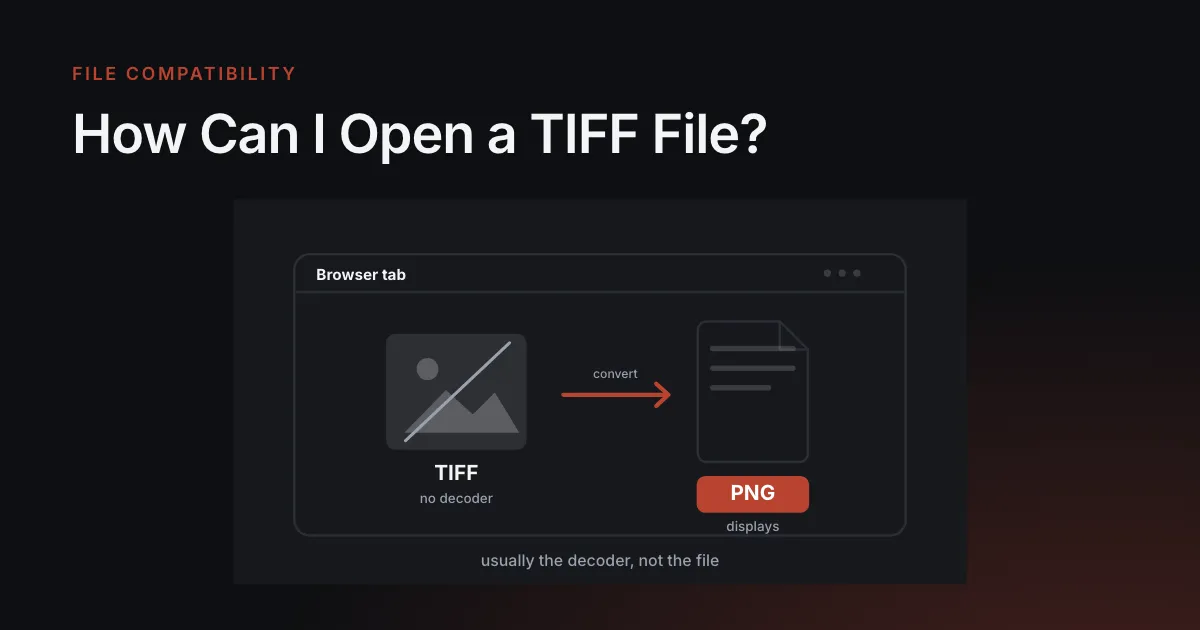
A TIFF opens in an image editor, a photo viewer or Safari; it does not open in Chrome, Edge or Firefox. The split is about decoders rather than about the file: the same bytes are readable everywhere a TIFF decoder ships, and most browsers do not ship one.
| Where you are | Opens a TIFF | Does not open a TIFF |
|---|---|---|
| Windows | Photos, Paint, IrfanView, Photoshop, GIMP | A web form that accepts only web image types |
| macOS | Preview, Photoshop, GIMP, Safari | Chrome, Edge and Firefox |
| Chrome, Edge, Firefox | Nothing built in | A TIFF image in a tab or an upload preview |
| Android | Some gallery apps | Chrome for Android |
| Any system, in a browser | Safari | Chrome, Edge and Firefox |
The browser row is the one that produces most of the questions in this topic. MDN’s image format guide lists TIFF as supported by Safari and not by the other browsers (MDN, image file types). A phone does not solve the problem on its own.
That is why a file that opens in Preview can still fail in a web form, and why the question “What is a TIFF file?” often arrives attached to a file that will not display. The format is readable; the program in front of it is the part that varies.
TIFF vs JPEG, PNG and PDF
Opening a file is one question; what the file is for is another. TIFF is the container, and JPEG, PNG and PDF are separate formats with different jobs. Comparing the file extension alone gets the answer wrong, because a TIFF can carry a JPEG, cannot carry a PDF’s text, and shares its losslessness with PNG.
JPEG is built to be small, and it buys the size by discarding high-frequency detail. A TIFF that stores JPEG data is therefore a lossy TIFF, while a TIFF with LZW or Deflate is not. For a master, keep the TIFF; for an attachment, a JPEG is the smaller file.
PNG is lossless, carries alpha properly, holds one image and opens in every browser. A TIFF and a PNG of the same pixels hold the same picture, which is why what each format carries is a better question than which one has more quality. TIFF keeps CMYK, 16-bit samples and pages; PNG keeps universal display.
PDF is a document format, not an image format: it can hold pages of text, vector drawings and images. A TIFF holds raster images and their tags. That difference is why a PDF of a scan is a document a person reads, while a TIFF of the same scan is a picture an archive keeps.
Converting a multi-page TIFF to PDF is a job for a PDF tool. Our extension does not write PDFs, and splitting a multi-page file into PNGs is the closest it comes. To go the other way, making a TIFF from a PNG is the direction it supports.
The short version is that TIFF is the format for a picture at rest, and JPEG, PNG and PDF are formats for a picture in transit or in a document. A file can move between them, but each move changes something the container was holding.
If you can’t open it
A format choice is made in advance; a file that will not open forces one. If a TIFF will not open, convert a copy to PNG in the browser you already have. PNG is decoded by Chrome, Edge and Firefox, so the converted file displays in the tab, attaches to a message and passes through a form that refused the original. The TIFF itself is left as it was.
We built a Chrome extension that does that conversion: you drop a TIFF in, the file is read and decoded in the tab, and the PNG is handed to your browser as a download. There is no upload step, no account and no network code, and the extension asks for no browser permissions at all.
A multi-page TIFF becomes one PNG per page, numbered from scan-001.png, and a batch can be taken one file at a time or together as a ZIP. The original TIFF stays exactly where it was. Add the extension to Chrome if that is the route you need.
The extension has limits, and they matter more here than in a product page. It writes PNG and TIFF only: no PDF, no JPEG. It does not resize, rotate or edit, and it does not add print resolution to a file. A TIFF it writes is 8-bit Deflate at 72 dpi, and a 16-bit source keeps its top eight bits.
TIFFs at 32 bits per channel and floating-point TIFFs are refused rather than guessed at. A file that is cut short is refused, but damage inside a compressed strip can pass and leave part of the image wrong. It runs in Chrome only. Those limits are the same ones described in what a conversion to PNG keeps, which covers the three cases where the picture changes rather than the container.
Final verdict - what a TIFF file is
A TIFF file is a container, not a single recipe: a header and a directory of tags describe pixels that can be lossless or JPEG-compressed, greyscale or CMYK, one page or fifty. The .tif extension tells you less than the tags inside it. Treat a TIFF as the master when the picture has to stay intact, and convert a copy to PNG when it has to be seen in a browser.
The tags are the part worth remembering. They explain the file size, the colour, the page count and the refusal, and they are the reason two files with the same extension can need two different answers. If the file in front of you will not open, the next page is why a TIFF will not open; if you only need it on screen, a PNG copy is enough.