A TIFF file opens in a program that has a TIFF decoder: Windows Photos, Apple Preview, GIMP, IrfanView, XnView MP or a viewer app on a phone. It does not open in a Chrome, Edge or Firefox tab, because those browsers ship without one. That gap explains most of the moments when someone asks how can I open a TIFF file and gets a broken image or a download instead.
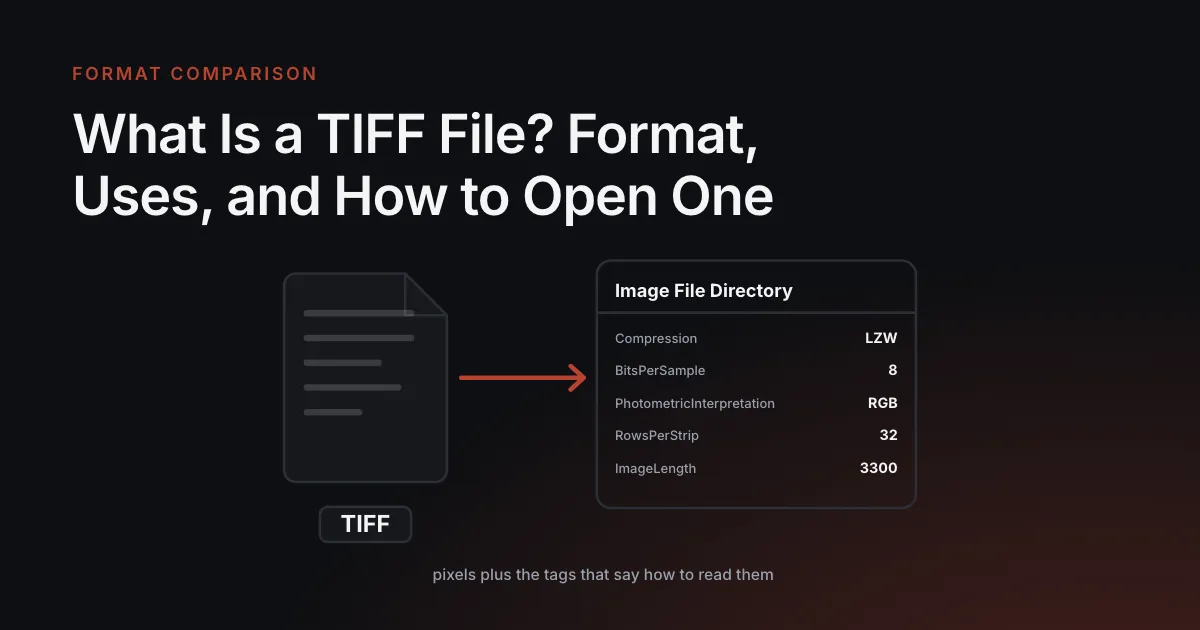
A TIFF is a tagged image file format that scanners, fax machines and document archives write. It keeps its structure in tags, so one file can hold several pages, several bit depths or a CMYK colour model. That flexibility is why the program on the other end matters more than the file name.
The route depends on the device. Windows and macOS each ship a viewer that reads an ordinary TIFF, Android does not, a browser tab never does, and an upload form has its own list of accepted formats. This page answers by device first, then covers the refusal that survives a change of viewer.
We build and test the converter this article describes, so what it accepts and refuses comes from our code and its tests. The browser support table comes from MDN, the page-chain rule from the TIFF 6.0 specification, the 4 GB ceiling from the Library of Congress, and the Android claim from Android’s own supported-formats list.
Quick answer
Any program that lists TIFF among its supported formats opens it: Photos, Preview, GIMP, IrfanView, XnView MP or a phone viewer app. Stock Android has no TIFF decoder, and no Chrome, Edge or Firefox tab can render TIFF either, so convert the file to PNG when the destination is a browser, a chat or an upload form.

How to open a TIFF file in Windows 11
On Windows 11, double-click the file: Photos opens an ordinary TIFF, and if it refuses, Open with lists the other viewers already installed.
Photos is the viewer Windows ships, and it reads the 8-bit TIFF that a scanner writes. If the picture is a multi-page scan or a fax, open it in a viewer with page navigation: IrfanView, XnView MP, GIMP, Affinity Photo and Photoshop all list TIFF explicitly, and the first two page through a multi-page file directly. A viewer that shows one page where you expect twelve is obeying the format, as the page-chain section below explains.
Before installing anything, right-click the file and choose Open with to see what is already there. If one program opens the file and another refuses it, the file is sound and the second program is the problem. If every installed program refuses it, move to the size, compression and damage checks below rather than downloading a third viewer.
How to open a TIFF file on a Mac
On macOS, double-click the file or drop it on Preview, which opens an ordinary TIFF and can export a copy as PNG.
Preview is the system viewer and the fastest route for a single page. If it shows one page where you expect many, the file holds more than one image and Preview is showing the first; use a viewer with page navigation or split the file into numbered PNGs. If Preview refuses the file, check its size before its name: a file above 4 GB is BigTIFF, and a truncated copy opens nowhere.
For anything beyond viewing, a full editor does the job. Photoshop, Affinity Photo and GIMP all open TIFF and all export PNG, which is the format to use when the next stop is a browser or a form. On a Mac without an editor, Preview handles a single page and the browser route below handles the upload.
How can I open a TIFF file on Android?
Android has no built-in TIFF decoder, so the system gallery will not preview a TIFF: use a viewer app or convert the file to PNG first.
Android’s own supported media formats table lists BMP, GIF, JPEG, PNG, WebP, HEIF and AVIF for images, and it does not list TIFF (Android Developers, supported media formats). A gallery follows that table, which is why a scanned or faxed TIFF appears as a generic file rather than a picture. A third-party viewer or a desktop conversion is the way out.
Multi-TIFF Viewer and File Viewer for Android are the apps the search results name, and both read the file once you grant storage access. The conversion route is shorter for a file with more than a page or two: convert the TIFF on a computer, copy the PNG across, and the gallery opens it. Our extension runs in desktop Chrome, not in mobile Chrome, so the phone cannot run it.
Can an iPhone open TIFF files?
An iPhone can display a TIFF in Safari, the one browser with a built-in TIFF decoder, but the apps that receive the file next may not accept it.
Safari carries the WebKit decoder that makes it the exception among browsers, so a TIFF opened from a link renders in the tab. The trouble starts when the file leaves Safari: Messages, mail attachments and web forms are built around JPEG, PNG and HEIC, and a form that lists accepted types rarely includes TIFF. A PNG copy is accepted where the TIFF is not.
If the scan needs to live on the phone, a viewer app from the App Store is the alternative, and it reads the file offline once it is there. Either route leaves the source TIFF untouched, which matters when it is the master copy of a signed page.
Can Chrome open a TIFF file?
Chrome cannot open a TIFF file: it ships no TIFF decoder, so the tab either saves the file or shows a broken-image icon.
MDN’s browser support table lists Safari as the one browser with built-in TIFF display and leaves Chrome, Edge and Firefox without a decoder (MDN, image file types). The filename extension says what the file is, not what the browser can do with it. A tab that draws a broken image and a tab that quietly downloads the file are the same refusal, delivered two ways.
| Browser | Displays TIFF? | What the reader sees |
|---|---|---|
| Chrome | No | A download, or a broken-image icon if the server labels it as an image |
| Edge | No | The same download or broken-image result |
| Firefox | No | The same download or broken-image result |
| Safari | Yes | The image renders in the tab |
Safari’s exception is worth knowing, but it does not make TIFF a web format. A page that renders a TIFF in Safari shows nothing in Chrome, and a form that accepts the file in one browser can still reject it on the server. When the destination is a browser tab, the reliable target is PNG, which the same MDN table lists as supported in every major browser.
How to view TIFF files
To view TIFF files, use a program that decodes them: Photos or Preview on a desktop, a viewer app on a phone, or Safari in a browser. The sections above are the short list; the decoder is the only requirement, and the browser table is the reason Chrome, Edge and Firefox are not on it.
An online TIFF viewer works around that in one of two ways: it uploads the file to a server and sends back an image, or it runs a decoder in the page. The first sends the document somewhere; the second does not. For a passport scan or a contract, that difference is the whole decision. If you only need to look and want the file to stay local, convert a copy to PNG and open that, which the next section covers.
How do I open a TIFF file with no viewer installed?
With no TIFF viewer installed, convert a copy to PNG in a desktop browser and open the PNG, which every tab renders.
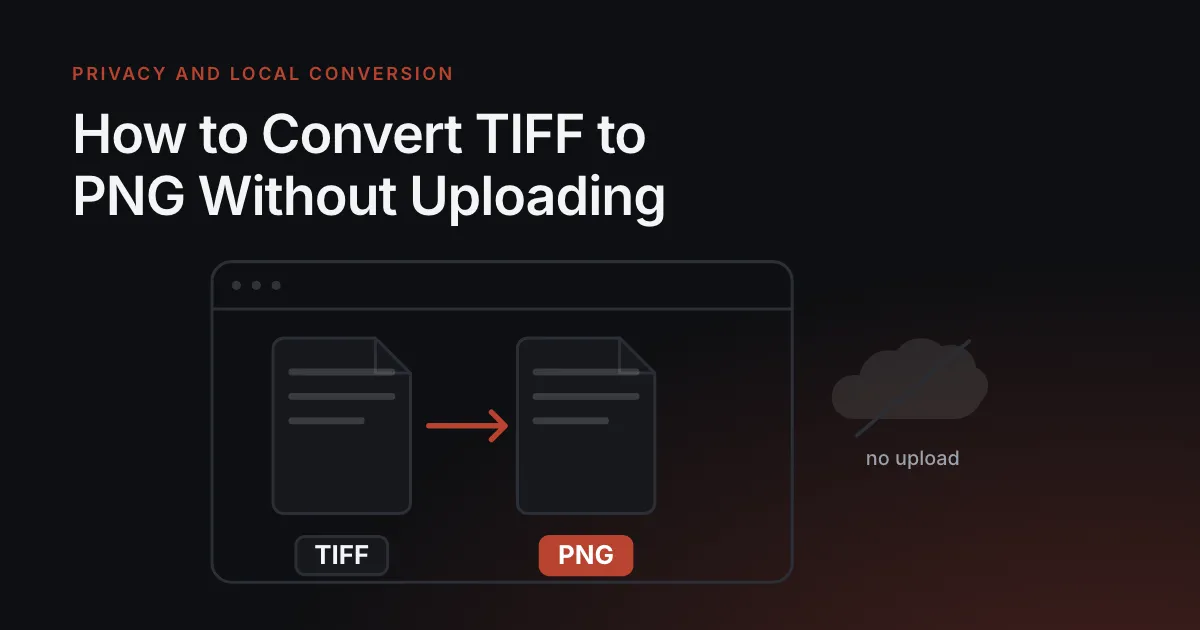
We do not turn Chrome into a TIFF viewer. We are a TIFF to PNG converter: the extension decodes the TIFF and writes a PNG the tab can display, and the work happens on your machine with no upload, so the document never leaves it.
- Add the extension to Chrome and click its toolbar icon. Our converter opens in a new tab.
- Drop the TIFF on the card, or press
Choose files. - Press
Convert. You can convert multiple TIFF to PNG files in one run; the pages inside one file are written in order. - Press the eye beside
Downloadto look at the result before you take it. - Press
Downloadon the card, or tick several files and pressDownload allfor one ZIP.
Nothing is uploaded. We ask for no browser permissions and include no networking code, so the TIFF is read and the PNG written locally (Chrome permissions list). Our privacy tests check that claim, and converting TIFF to PNG without uploading shows how to verify it from the browser’s network panel.
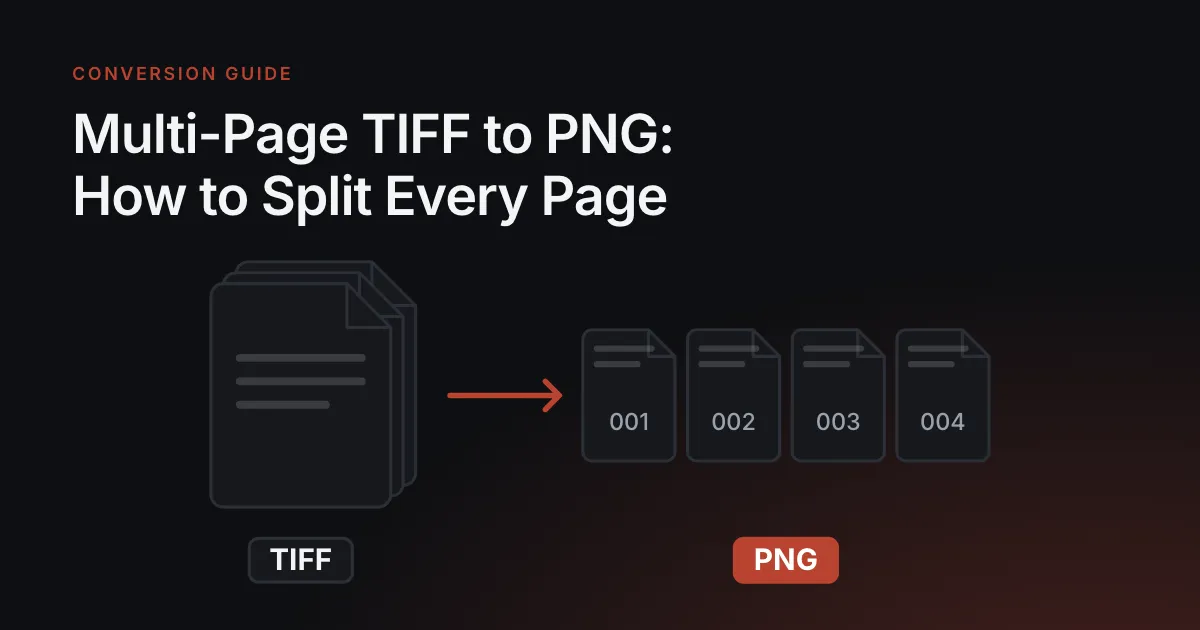
You can batch convert TIFF to PNG in one run: add as many files as you like, and up to eight convert in parallel. A multi-page TIFF becomes one numbered PNG per page, in page order, and the ZIP download packs a whole run into one file.
A TIF opens exactly the same way. The two extensions name one format, so converting TIF to PNG uses
the same steps and meets the same limits. People used to call this save TIFF as PNG: the PNG is
written beside the source, and the TIFF stays where it was. Renaming scan.tif to scan.png is not
that change, which is why it still fails anywhere the TIFF failed.
How do I edit a TIFF file?
To edit a TIFF file, open it in an image editor that writes TIFF: Photoshop, Affinity Photo, GIMP or Lightroom. A viewer shows the picture; an editor changes pixels and saves them back into the container, and the compression, bit depth and colour model are chosen again on export.
Editing is not converting. Our extension reads a TIFF and writes a PNG, and it does not crop, rotate, resize or adjust colour, so it cannot change the picture. Use an editor for that, and keep the TIFF as the master when the edit has to survive a round trip. A PNG copy is for the screen, not for the archive.
Does Adobe Camera Raw support TIFF?
Yes. Adobe Camera Raw opens TIFF files as well as camera raw files, so a TIFF can be adjusted in Camera Raw from Bridge or through the Camera Raw filter in Photoshop (Adobe, Camera Raw overview). A TIFF has already been demosaiced, so Camera Raw adjusts its existing pixels rather than interpreting sensor data.
That is also the limit. Camera Raw can adjust a TIFF, but it cannot recover detail the file no longer holds. When the camera wrote a raw file, that raw file is the better master; the TIFF is the edited copy.
Why websites and upload forms reject TIFF
A website rejects a TIFF when its upload form accepts only the formats its own pages and downstream tools can render, usually PNG, JPEG or WebP.
The form may check the extension or MIME type before the upload starts, and the server may inspect the bytes afterwards. That policy is about the site’s rendering, not about the quality of your file, and retrying does not change it.
If the form is the only obstacle, convert the TIFF file to PNG and upload the copy. The pixels survive for an ordinary 8-bit RGB TIFF, and the form accepts the PNG if it lists PNG. Check the form’s own list first: it states the accepted formats and often a size limit as well. A JPEG-compressed TIFF produces the larger PNG, because the PNG keeps detail the JPEG already discarded.
Is the file damaged, or is your viewer missing a decoder?
A browser refusal points to a missing decoder, a form refusal to upload policy, and wrong pixels on a page that opened to damage inside a strip.
Once you know which layer refused the file, the symptom names it, and the table below is the shortest version of that decision.
| What you see | Likely layer | Next check |
|---|---|---|
| Browser shows a broken image or downloads the file | Browser decoder | Open it in a TIFF-capable viewer, or convert to PNG |
| Form says the file type is not supported | Upload policy | Check the accepted formats, then convert to PNG |
| Opens on one computer but not another | Viewer support | Compare viewers, not copies of the file |
| Only the first page appears | A reader that stops at the first IFD | Use a multi-page viewer, or split the file |
| File is 4 GB or larger | Classic TIFF’s offset limit | Check whether it is BigTIFF and use a BigTIFF-capable reader |
| ”File is incomplete or truncated” | Download or copy was cut short | Re-copy or re-export the file |
| Opens, but part of the picture is wrong | Damage inside a compressed strip | Compare with the source and re-export |
| Refused for compression, colour layout or bit depth | Decoder limits | Re-export as 8- or 16-bit with a supported scheme |
The 4 GB row is easy to mistake for corruption. Classic TIFF stores file offsets in 32 bits, which caps a standard TIFF at 4 GB; BigTIFF moves to 64-bit offsets and raises the ceiling (Library of Congress, TIFF Rev 6.0). A file over 4 GB cannot be a well-formed classic TIFF, so it is either BigTIFF or malformed, and a viewer that only knows classic TIFF will refuse a valid one.
The multi-page row is just as easy to misread. TIFF 6.0 allows more than one IFD in a file, each defining a subfile, and it does not require a baseline reader to read beyond the first (TIFF 6.0 specification). A viewer showing one page may be doing exactly what the specification permits.
If you expect twelve pages, use a viewer with page navigation, or convert the file to one PNG per page, as multi-page TIFF to PNG describes.
What a conversion can and cannot repair
A TIFF to PNG conversion fixes compatibility, not damage: a structurally damaged file is refused, and a damaged strip decodes into a wrong picture.
Structural damage stops the conversion with File is incomplete or truncated or Could not decode
the image data. The harder case is damage inside a compressed strip: it decompresses, the row reads
Finished, and the picture is wrong.

Our own test flipped one bit in the middle of a compressed strip of a 9,600-pixel test image and counted the pixels that changed:
| Source compression | Pixels wrong |
|---|---|
| LZW | 2,168 |
| CCITT G4 | 1,529 |
| CCITT G3 | 1,096 |
| Deflate | 5 at that bit; a sweep of all 912 bit positions in the same strip reached 6,588 |
| PackBits | 1 |
These numbers describe that one image and, except for the Deflate sweep, one bit position per compression scheme. They are not an estimate for every damaged TIFF; they show that a single wrong bit can reach hundreds or thousands of pixels, and that PackBits can hide the damage in a single pixel.
So the absence of an error is not proof that the page is right. Look at pages with dense detail after a long run, especially when the file came from a flaky download or an old tape. LZW is worth singling out, because the measured single-bit error there changed 2,168 pixels.
What we cannot do matters just as much. We cannot write a PDF or a JPEG, join pages into one PNG, recover pages missing from a broken page chain, or restore detail a lossy source already discarded. We refuse a 32-bit or floating-point TIFF, a compression scheme or colour layout our decoder has no rule for, and structural damage.
The files that do convert can still change in the process. A 16-bit TIFF keeps the top eight bits per channel, which is the reduction a screen makes anyway, and a CMYK TIFF becomes RGB. Both are limits of the conversion, not bugs, and they are worth knowing before you throw the source away.
Final verdict - opening a TIFF file
The short answer to how can I open a TIFF file is the program, not the file: a viewer that lists TIFF on your desktop, and a PNG copy everywhere else. Check the viewer, the upload form, the page count and the size before you repair anything, and keep the TIFF as the master.
If you are deciding whether PNG is the right target at all, TIFF vs PNG compares what each format can carry. If the file must stay on your machine, converting TIFF to PNG without uploading shows how to check that claim instead of taking it on trust. If the TIFF is the last copy of a scan, what a TIFF file is explains what the container can and cannot hold.