A TIFF transparent background is possible, but only when the file itself carries an alpha channel; the file extension says nothing about it. Converting TIFF to PNG copies that channel, so a logo that was transparent stays transparent. The same conversion cannot remove a white background stored as white pixels, because nothing in the file marks those pixels as background.
TIFF is a tagged image format: a header points to image directories, and tags describe how pixels are stored and what each sample means. Transparency is one of those descriptions, not a display setting. A TIFF with no alpha channel is opaque even when every pixel is white, and no converter can tell a white background from a white shirt.
Quick answer
A TIFF can have a transparent background when its pixels carry an alpha channel, and converting it to PNG preserves that channel exactly. A TIFF whose background is white pixels has no transparency to preserve, so the PNG keeps the white. Transparency is authored in an editor, not created by a converter.
We built the converter this article describes, so what it does with a transparent TIFF is read from its source rather than from a store listing. The tag and chunk mechanics come from the TIFF 6.0 and W3C specifications, and the browser and archival claims from MDN and the Library of Congress.
The two jobs look like one search and are not. Preserving transparency is a conversion, and it is what we do. Removing a background is an edit, and it happens before the conversion or not at all. Most advice on this topic mixes them, so a reader can follow every step and still end up with a white rectangle.
TIFF transparent background: what the file stores
A TIFF stores a transparent background as an extra sample per pixel, not as a background colour.
A TIFF alpha channel is recorded by the ExtraSamples tag, number 338. It takes one value for each sample beyond what the colour layout
requires, and the values that matter here are 0, 1 and 2 (TIFF 6.0 specification). An RGB image normally has three samples per
pixel; a fourth sample with ExtraSamples = 2 is unassociated alpha, the soft matte most editors
mean by transparency.
The two kinds of alpha are not interchangeable. Associated alpha, value 1, stores colour components already multiplied by alpha; unassociated alpha, value 2, stores colour independently. The specification defines both, and a reader that ignores the tag draws an opaque image even though the samples are there.
| ExtraSamples value | Meaning | What the colour samples hold |
|---|---|---|
| 0 | Unspecified extra data | Not transparency; a reader must not treat it as alpha |
| 1 | Associated alpha | Colour already multiplied by alpha |
| 2 | Unassociated alpha | Colour independent of alpha; a soft matte |
| Tag absent | No extra sample | Every pixel is opaque |
A file with no extra-sample tag has no transparency to preserve, however the image looks. A scan from a document scanner is usually RGB or greyscale with no extra sample; the white paper around a signature is white in the file rather than transparent. The same is true of a screenshot and of most exported photographs.
TIFF alpha is standard but not a common denominator. The tag is defined by the specification, and the programs that read it are not obliged to display it the way another program does. A TIFF can look cut out in Photoshop and flat white in a viewer that ignores the extra sample, and both programs are reading the same bytes.
How to make the background of a TIFF image transparent
To make a TIFF background transparent, remove the background in an image editor that writes an alpha channel, then save the file with that channel intact.
The operation is an edit, not a conversion. Add an alpha channel or unlock the background layer, select the background, delete it or mask it, and export in a format that keeps alpha. Photoshop, GIMP, Affinity Photo and Photopea can all do that, and the menu names differ while the step does not: the transparent area has to become pixels with an alpha value below 255.
A converter cannot take that step for you. It receives pixels, not objects, and a white background and a white area inside the subject are the same three bytes. Any tool that offers to remove a background while converting is running a separate recognition step, which is an edit with its own error rate, not a property of the file format.
If the image is headed for a screen, export PNG from the editor and skip the TIFF. If it has to stay TIFF for a print or archive pipeline, save it with alpha and check it in the application that will receive it, because that application is the one whose answer matters.
What happens to transparency when a TIFF becomes a PNG
A TIFF-to-PNG conversion preserves an alpha channel that is already in the file; it does not add transparency to an opaque image.
We read each pixel as red, green, blue and alpha, then write the smallest PNG colour type that holds the page. A page with partial alpha becomes RGBA (colour type 6) or grey plus alpha (type 4). An opaque page becomes RGB (type 2) or greyscale (type 0), with no alpha channel because none is needed. We never write a palette PNG, so a transparent PNG from us carries a real alpha channel rather than an index table.
People who want to convert TIFF to PNG with transparent background usually need two jobs done. The conversion carries alpha; the transparency itself has to exist in the file before the conversion starts. The conversion’s job is to carry it, not to infer it.
| What the TIFF holds | What the PNG gets | What the reader sees |
|---|---|---|
| Partial alpha channel | RGBA or grey plus alpha (type 6 or 4) | The same soft edges and cut-outs |
| Alpha channel, every pixel opaque | RGB or greyscale (type 2 or 0), no alpha | An opaque image; nothing is lost visually |
| No alpha channel | RGB or greyscale | An opaque image |
| White background stored as pixels | RGB or greyscale with white pixels | A white background |
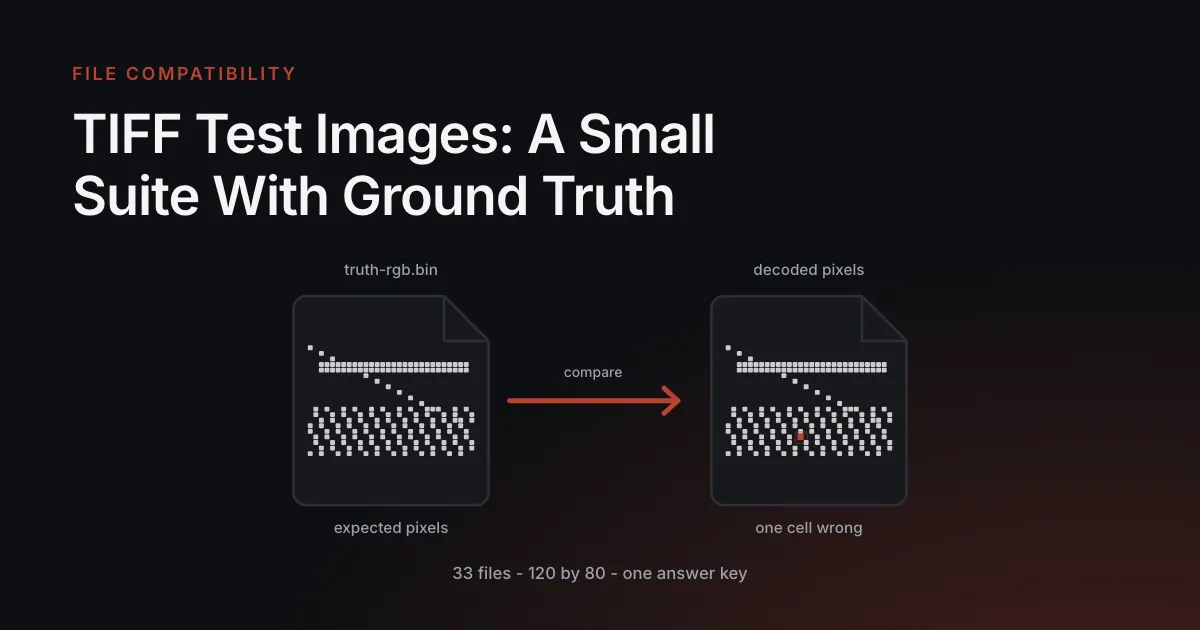
Our own fixtures make that claim checkable. One is a 120 x 80 RGBA TIFF whose alpha is
(7x + 13y) mod 256, so its 9,600 pixels contain every value from 0 to 255.
The tests assert that an alpha-bearing TIFF keeps its alpha, that the PNG writer round-trips all four
channels byte for byte, and that the TIFF writer records ExtraSamples = 2 when it writes transparency
back out. A converter that premultiplied the colour on the way through would fail those comparisons,
which is why we wrote a PNG writer instead of using a canvas.

Do PNG files have transparent backgrounds?
A PNG has a transparent background only when the file stores transparency, either in an alpha channel or in a tRNS chunk; the format allows both, and it allows neither.
PNG’s alpha channel lives in two of its five colour types: greyscale with alpha (type 4) and truecolour with alpha (type 6). Alpha runs from 0 for fully transparent to 255 for fully opaque at 8 bits per sample. The samples sit in the pixel beside the colour, so a half-transparent edge keeps its own value (W3C PNG specification).
The other three colour types can carry transparency through a tRNS chunk. For greyscale and truecolour, the chunk names one sample value that is fully transparent; for indexed-colour images it supplies an alpha value for each palette entry, and entries past the end of the chunk are opaque. A tRNS chunk is not allowed in types 4 and 6, because the alpha channel is already there.
PNG transparency is lossless by design. The format was built for transmitting images over computer networks, so a cut-out arrives in a browser exactly as it left the editor (Library of Congress, PNG).
That difference explains a common surprise. A key colour gives binary transparency: the named value disappears completely, and every other value stays fully opaque. An anti-aliased edge saved that way keeps a fringe of the old background, because the softened pixels are no longer the exact key colour. An alpha channel has 256 levels and does not have that problem.
A PNG can still look white on screen. The four usual reasons:
- The file has no transparency. A PNG exported from a JPEG, or from a TIFF with no alpha, is opaque. The format permits transparency; it does not add it.
- The program composites onto white. A viewer, a document editor or a print tool may draw the page colour behind the image. The file is transparent and the display is not.
- The transparency is a tRNS key colour. Only the exact stored value is transparent, so a processed or resaved copy can lose the match.
- A later step flattened it. Some upload pipelines and slide tools re-encode the image onto a background.
To check the file rather than the display, open the PNG in an editor and look at its alpha channel, or place it over a dark background. If the background changes colour, the transparency is in the file and the program that showed white was filling it in.
PNG or TIFF for a transparent background?
PNG is the better format for a transparent image that has to be displayed; TIFF is the better master when a press or an archive requires TIFF.
Every major browser decodes PNG, and transparency is part of the base format, so a cut-out logo works in a web page, a chat window and an upload form (MDN, image file types).
TIFF is not decoded by Chrome, Edge or Firefox; Safari is the browser that displays it without help, and alpha support varies among the programs that do open it.
For print and preservation, the calculation changes. TIFF is the format archives and print pipelines ask for, and the Library of Congress describes it as an openly specified format for raster images (Library of Congress, TIFF). A print workflow may flatten transparency before it reaches paper, so a TIFF’s alpha is not automatically preserved in print either; the receiving workflow decides.
The practical rule is to keep the master and export the delivery. If the file must stay TIFF, keep it as a TIFF with alpha; if it is going to a screen, TIFF versus PNG is a choice about the destination, and transparency is one row of it.
How to convert TIFF to PNG and keep the transparency
To keep transparency, convert a TIFF that already has alpha and check the PNG over a dark background before you send it.
- Add the extension to Chrome and click its toolbar icon.
- Choose the TIFF to PNG direction and drop the file on the card, or press
Choose files. - Press
Convert. We impose no limit on how many files you add; up to eight convert at the same time. Each page of a multi-page TIFF becomes its own numbered PNG. - Press
Download, or tick several results and pressDownload allfor one ZIP. - Open the PNG over a dark background and zoom in on the edge where the transparency should be.
Nothing is uploaded: we decode the file and write the PNG in the tab. That matters for a cut-out of a document, a person or a product that has not been published yet.
Some files change on the way through, and none of the changes is about transparency. A 16-bit TIFF keeps its top eight bits per channel, a CMYK TIFF becomes RGB, and a JPEG-compressed TIFF can produce a larger PNG because the PNG stores the detail the JPEG already discarded.
A damaged or unsupported file is refused rather than converted to a wrong picture. The lossless conversion guide covers those cases; if the TIFF will not open at all, the refusal is a different problem.
We also write the other direction. A transparent PNG becomes a single-page TIFF with alpha, recorded as unassociated alpha so the colour is stored independently of it.
Final verdict - TIFF transparency
A TIFF transparent background is a property of the pixels, not of the conversion: the file either carries alpha or it does not. Converting TIFF to PNG preserves that alpha exactly, so use PNG when the image is going to a screen and keep the TIFF when a press or an archive asks for it. If the background is white, remove it in an editor first; no converter can infer which pixels you meant.
To try it on a file that already has alpha, add the extension to Chrome. We convert in the tab and leave the source TIFF untouched.