A TIFF to PNG conversion can be lossless, and here it is. PNG never throws pixels away, and a TIFF does not either unless its own compression already did, so an 8-bit RGB scan comes out of the tab as the same image that went in. The qualifier is in the word “can”. Three properties of the source file decide whether your particular conversion keeps everything, and two of them have nothing to do with the converter you use.
Quick answer
PNG is always lossless; an 8-bit TIFF to PNG conversion keeps every pixel. A JPEG-compressed TIFF was already lossy: the conversion keeps its decoded pixels but not the detail JPEG removed. A 16-bit TIFF becomes 8 bits per channel; a CMYK TIFF is represented in RGB. Past its lossless mark, the compression slider reduces colours to a palette.
How to convert TIFF to PNG without losing quality
To convert a TIFF file to PNG, there are five steps, and none asks you to guess a setting.
- Add the extension to Chrome and open it from the toolbar. It opens in a new tab.
- Leave the switch under the title at
TIFF → PNG. - Drop the files on the card, paste them, or click to choose them. Leave the compression slider where it opens, inside its lossless range.
- Press
Convert. Nothing is handed over yet; each file waits on its own card. - Press
Downloadon a card, or tick several and pressDownload allfor one ZIP archive.
The files arrive as ordinary browser downloads, into your Downloads folder or wherever Chrome has been told to put them. A finished file stays on its card until you remove it from the list or reload the page, so the same conversion can be downloaded again without redoing it.
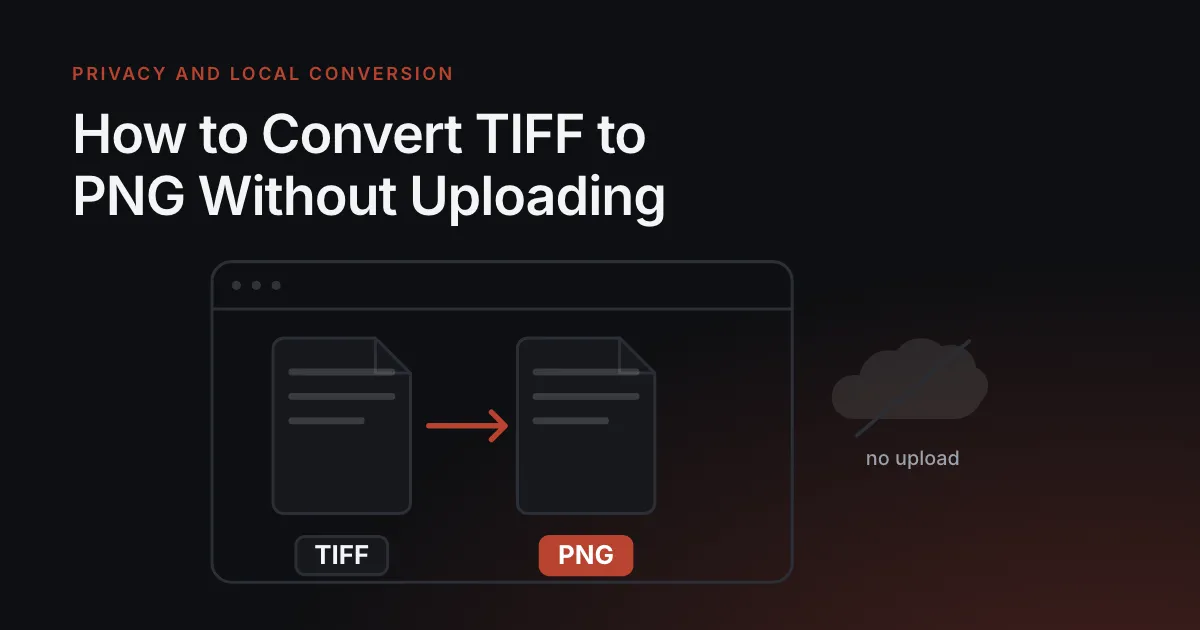
The conversion happens in the tab, so a document that must not leave the machine is not uploaded: we ask for no browser permissions and ship no networking code (Chrome permissions list).
The rest of this guide is about recognising the cases where a conversion changes the picture, and about what a correct one looks like when it is finished. For the wider question of which format to keep, see the format comparison.
What “lossless” actually promises
Lossless means the pixel values are preserved exactly, not that the file is unchanged. Lossless compression is a way of packing those values into fewer bytes; inflating the file restores the same numbers in the same order. The PNG specification defines its image data as a stream that must decode back to the original samples, which is what makes the promise a property of the format rather than a marketing claim (W3C PNG specification).
In practice, four things survive a correct conversion: the width and height in pixels, the colour of every pixel, the position of every pixel, and - where the source has it - the exact alpha value of a transparent pixel. The last one is easy to get wrong. A converter that rounds alpha to fully opaque or fully clear produces a picture that looks right on a white page and shows a halo on any other background.
The two formats are lossless in the same sense of the word, which is why the conversion between them does not have to approximate anything. TIFF is a container that can hold compressed or uncompressed data, and PNG is a container with one compression method. Turning a lossless TIFF into a PNG is a translation, not a re-encode from a lossy master.
The three cases where something changes
The conversion either keeps the pixels or changes them, and a few source files decide which. What was already lost before the conversion is a separate question from what the conversion itself loses.
| Source | What the conversion does | Quality lost |
|---|---|---|
| 8-bit RGB or greyscale, lossless compression | Same pixels in a PNG | None |
| JPEG-compressed TIFF | Decoded pixels kept, lossless | Nothing new; the JPEG’s loss stays |
| 16-bit TIFF | Top 8 bits of each sample kept | Precision, by the conversion |
| CMYK TIFF | Represented in RGB | Colour model, by the conversion |
| Compression slider past its mark | Colours reduced to a palette | Detail, by choice |
| Several pages | One PNG per page | None, but one file becomes many |
A JPEG-compressed TIFF is already lossy
TIFF is a container, and one of the compression schemes it permits is JPEG (TIFF 6.0 specification). A scanner or an archive may write a TIFF whose image data is a JPEG stream, and that file has already discarded detail.
The PNG that comes out is lossless with respect to the TIFF, but the TIFF is not lossless with respect to the scene that was scanned. The conversion adds no loss of its own here; it only declines to hide the one that was already there.
A JPEG-compressed TIFF is also the case where the PNG gets bigger. JPEG made the file small by throwing detail away; PNG cannot throw anything away, so it stores every pixel it is handed. One measured file grew by 107%.
The card on the finished file shows the percentage change rather than presenting the increase as a fault. A larger PNG does not prove the source was JPEG - content and compression settings matter too - but it is the first thing to check.
A 16-bit TIFF is reduced to 8 bits per channel
A PNG we write carries eight bits per channel. A 16-bit TIFF converts, but each sample keeps its top eight bits - the same reduction an image viewer makes to show the file on an 8-bit screen. For a document scan the difference is hard to see, though how much it shows depends on the image. For a medical image, a radiograph or a high-bit-depth photographic master, the extra precision is the reason the file exists, and losing it matters.
The conversion succeeds rather than refusing the file, so the decision stays with you. If the 16 bits are load-bearing, keep the TIFF.

CMYK has to be represented in RGB
PNG has no CMYK mode. It stores greyscale, RGB, palette or RGBA images, and that is the whole list. A CMYK TIFF therefore converts into a file that cannot carry the same colour model; the values have to be represented as RGB, and some of a CMYK gamut has no exact RGB equivalent.
For a document or a web image, RGB is the right model. For a file that will go to a printing press, it is not a conversion to make casually: the press expects CMYK, and the PNG cannot hold it.
The compression slider past its lossless mark
The slider is a ladder of steps, and its first five are lossless: the same pixels, written with more and more search effort. A tick on the slider marks where they end.
Past it, each step first reduces the page to a palette of 256, 128, 64, 32, 16 or 8 colours and only then compresses it. That reduction is quantization, not compression: the picture changes, and a smooth gradient bands. The slider opens inside the lossless range, so a conversion at its default has no quality to trade away.

What we show you before you download
Nothing leaves the page when you press Convert. The file is decoded and encoded in the tab, the
result waits on its own card, and it reaches your browser only when you press Download. That
ordering is what makes the size comparison useful rather than a post-hoc apology.
Every finished card shows the output’s name and size next to the source’s, with the percentage change. The sizes below come from a TIFF to PNG conversion of sample files from our repository, using the encoder we ship: a PNG writer that picks the smallest colour type and a filter per row, then lossless oxipng recompression. Nothing was resized and no colour was changed. These measurements are a subset of the table in TIFF vs PNG.
| Source TIFF | PNG result | What the change means |
|---|---|---|
| Uncompressed, 7,373,064 B | 4,292,388 B (-41.8%) | PNG packs the same pixels harder |
| Deflate-compressed, 414,416 B | 346,731 B (-16.3%) | similar compression, tighter framing |
| JPEG-compressed, 135,220 B | 280,189 B (+107%) | the source was already lossy |
| 16-bit greyscale or RGB | 8-bit output | top eight bits kept per channel |
| CMYK | RGB stored | PNG has no CMYK mode |
The size is a diagnostic, not a score. A smaller PNG is normal. A larger one points at the source: check whether it was compressed with a lossy scheme. That is the first thing to look at when a conversion surprises you.
The eye beside Download opens the converted image the way the file holds it, page by page when the
source had more than one. Looking at the output before handing it on is cheap, and it is the only
check that catches damage inside a compressed strip - a case the decoder cannot detect.
Why the PNG is often smaller than an uncompressed TIFF
A PNG encoder writes only the channels the picture actually has, then filters each row before compressing it. An opaque photograph needs no alpha channel; a greyscale scan needs no colour channel. Writing one channel instead of four removes a quarter to three quarters of the raw data before compression begins.
Row filters are the second saving in a TIFF file to PNG conversion. PNG predicts each row from the one above it, and the encoder picks whichever of the five filters leaves the smallest residual for that row; the specification lists all five (W3C PNG specification, filtering). Flat scans and screenshots reduce extremely well under this scheme, which is why a document TIFF often shrinks by a third or more.
The browser’s own canvas is the comparison worth knowing. A canvas-shaped PNG is RGBA, uses one fixed row filter and a low deflate level, because that is how a canvas encoder trades size for speed.
Measured on three sample files in Node, with a PNG built the way a canvas builds one, our encoder was 9.9% smaller on a 1,920 by 1,280 uncompressed photograph (5,074,213 B against 4,570,656 B). It was 17.9% smaller on a Deflate-compressed 512 by 512 image and 18.0% on an RGBA image with every alpha at 255.
Those figures are before oxipng, which takes a further 6 to 11 percent, and were not measured
against Chrome’s own canvas.toBlob() output. Across a 300-page scan, even the smaller gain adds up.
When to keep the TIFF instead
Convert to PNG when the destination accepts PNG and not TIFF: a web form, a chat app, a document editor, a records system, a slide deck. That is the ordinary case, and it is what we exist for.
Saving a TIFF as a PNG does not have to cost the TIFF: the conversion writes a second file and leaves the source where it was.
Keep the TIFF when the file is a master rather than a delivery copy. Three signals point that way: the TIFF is CMYK and a press will print it; it carries 16-bit samples you rely on; or it is the archival copy of a scan and the PNG is a derivative for sharing. Converting a derivative is fine. Converting the only copy and deleting the source is not, because no lossless conversion restores information the source never had.
We do not produce PDFs, JPEGs or anything other than PNG and TIFF, and we do not edit images: no crop, rotate, resize or colour adjustment. If the job needs those, it needs a different tool, and the conversion is the smaller half of it.
Checking the result before you delete the original
Five checks take under a minute and catch almost everything.
- Dimensions. Compare the PNG’s pixel width and height with the TIFF’s. They should be identical.
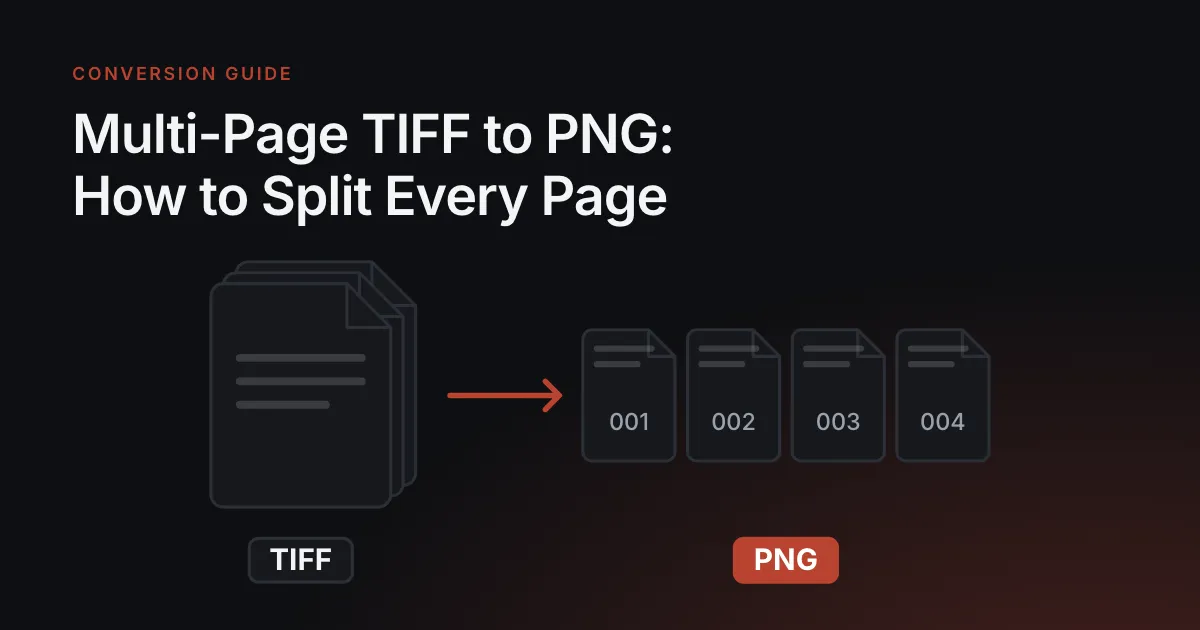
- Page count. A multi-page TIFF produces one PNG per page, numbered from
-001. Count the files. - Transparency. If you converted a TIFF to PNG with a transparent background, place the PNG on a dark surface. A halo means alpha was rounded.
- File size direction. A PNG much larger than the TIFF points to a JPEG-compressed source. That is expected, not a failure.
- Spot-check the image. Open the PNG at full size and look at the area with the most detail. Damage inside a compressed strip can decode without an error and still be wrong.
That last check is the one nobody wants to hear. Damage that cuts a file short is refused with File is incomplete or truncated, but damage inside a compressed strip is not caught.
In a measured test on a 9,600-pixel image, one bit flipped in the middle of a compressed strip left 2,168 pixels wrong under LZW, 1,529 under CCITT G4 and 1,096 under CCITT G3. The decoder succeeds; the picture is wrong. A damaged LZW file can also stall the conversion entirely until the page is reloaded.
Final verdict - converting TIFF to PNG without losing quality
For an ordinary 8-bit TIFF, the conversion is lossless and the PNG is often smaller than an uncompressed original. Check three things before you rely on it: was the source JPEG-compressed, does it carry 16-bit samples, and is it CMYK. Those are properties of the file, not of the converter, and each one decides what “without losing quality” can honestly mean for it.
The comparison of the two formats, including when TIFF is the better choice, is in the TIFF vs PNG guide. If the file that will not open is a fax with hundreds of pages, multi-page TIFF to PNG covers the naming, the batch and the memory limits.