Converting a multi-page TIFF to PNG gives one PNG per page, numbered in reading order. A multi-page TIFF is one file holding several images: a scanned contract, a fax, a document an archive stored as a single object. PNG holds one image per file and has no notion of a second page, so the conversion changes the shape of the data - one file becomes many - and our numbering keeps the pages in order afterwards.
Quick answer
A multi-page TIFF converts to one PNG per page. Each file is named after the source with a zero-padded page number: scan-001.png through scan-012.png for a twelve-page file. Pages keep their original order, a single-page TIFF keeps its plain name, and several files convert at once as separate cards. Nothing is merged, reordered or uploaded.
The conversion itself is the easy part; the count and the order are what need checking. We built the converter around scanned documents and faxes, and the numbering and damage cases below come from files we ran through it. This guide covers those checks, plus the three cases where splitting a TIFF into PNGs is the wrong thing to do. For the format-level reasons behind the split, see TIFF vs PNG.
How to convert a multi-page TIFF to PNG
Drop the TIFF, press Convert, check the pages, then download them; only the last step hands a
file over.
- Add the extension to Chrome and click the toolbar icon. We open in a new tab.
- Drop the TIFF on the card, or press
Choose files. Several multi-page files can go in together. - Press
Convert. Each card counts its pages,Converting 3 of 8 pages, then readsFinished. - Press the eye beside
Downloadto look through the pages in order. - Tick the files and press
Download allfor one ZIP, or pressDownloadon a card to take that file alone.

Every page comes out as its own PNG, numbered in the order of the source. We convert in the tab, so the TIFF is not uploaded; the limits are the machine’s memory and speed, and the ZIP limits described below.
Why one TIFF becomes several PNGs
A TIFF file can hold a chain of images, each with its own tags, which is how a fax machine writes twenty pages into one document (TIFF 6.0 specification). A reader walks the chain and shows one page at a time.
The pages are not frames of an animation; they are a sequence of independent images in a container built for sequences. A viewer that reads only the first image shows a twelve-page file as a single page, which is why the count is worth checking.
PNG has no such structure. A PNG datastream is one image with one set of dimensions, and the specification defines no way to append a second image to it (W3C PNG specification). Any tool that claims to make a “multi-page PNG” is either wrapping several PNGs inside another container, or writing an APNG - an animated format whose frames are timed rather than counted, and which document viewers do not page through as a document.
So the split is not a limitation we impose; it is what the target format can hold. The consequence is practical: a 30-page TIFF that was one attachment becomes 30 attachments or one ZIP, and a records system that expected a single upload will need to be told otherwise.
Multi-page TIFFs are made by the software that wrote the document - scanner or fax software saving a whole job to one file. We do not create them: our reverse direction writes one single-page TIFF per PNG, and we never join pages into one file.
What the file names look like
We name each output after the source, with the extension replaced and a page number appended. The number is padded to at least three digits, which is what makes a set sort correctly in a file manager, an email client and a script that processes the folder in name order.
| Source | Page count | Output |
|---|---|---|
| scan.tif | 1 | scan.png |
| scan.tif | 12 | scan-001.png to scan-012.png |
| contract.tif | 300 | contract-001.png to contract-300.png |
| fax.tif | 1,204 | fax-0001.png to fax-1204.png |
Two details are easy to miss. A single-page TIFF gets no number at all, because there is no second
page to distinguish it from and a -001 suffix on a lone file only makes the name longer. And the
decision is made from the count the file actually contains, not from the name or the
extension: a file called scan.tif with one page produces scan.png.
If a name in the list is already taken by another file in the same batch, the browser’s ordinary
download naming applies and the second one arrives as scan (1).png. That is Chrome’s behaviour,
not ours, and it is a hint that two different source files share a name. Inside a ZIP we do the
numbering ourselves and start at (2).
Finding out how many pages the file has
Three checks give you the count, and two of them are on our page. Knowing it before the conversion is better than reconstructing it afterwards, because you will compare the output against it.
- The eye beside
Download. After conversion, the eye opens the result page by page. Counting while looking is the most direct check, and it also shows you whether the pages are legible. - The card, while it runs. A converting card reads
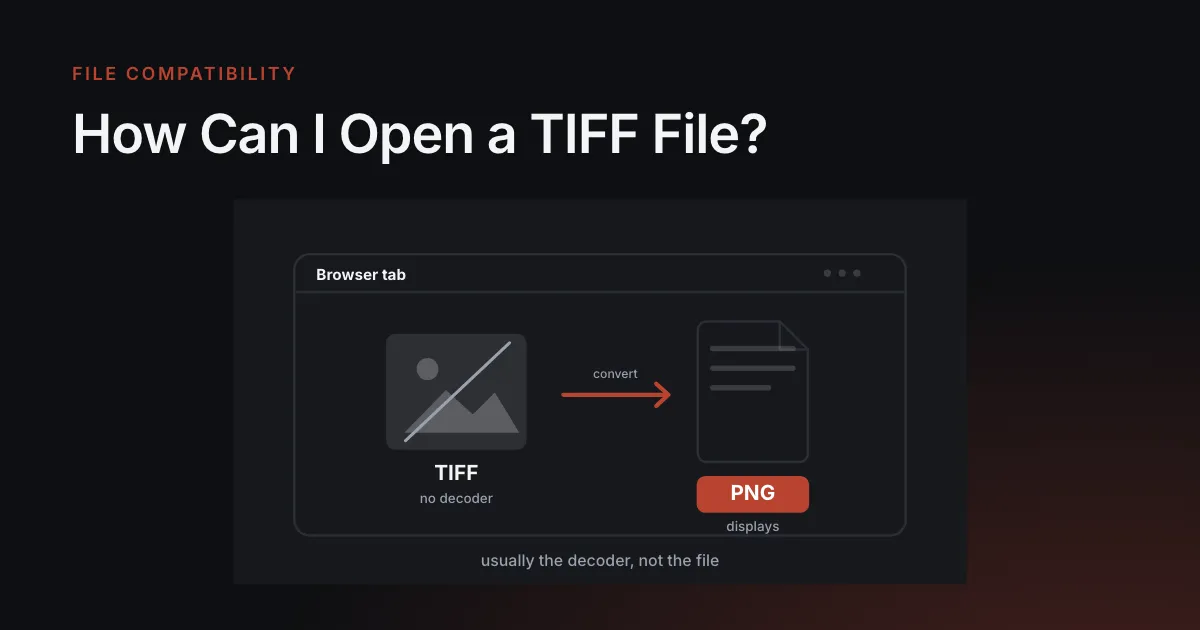
Converting 3 of 8 pages, so the count appears as soon as the file starts, before anything has finished. - A viewer that reads the whole chain. Some programs show only the first image of a TIFF, so one page on screen does not mean one page in the file. Built-in browser decoders are not the place to check either: Chrome, Edge and Firefox do not decode TIFF in a tab, though Safari does (MDN, image file types). If a viewer shows a single page where you expect many, try another before concluding the file is short.
A TIFF whose chain is broken may report fewer images than it has. That is damage in the file’s structure, and no tool can invent the missing ones; if the count is short, compare against the paper document.
Converting a 300-page fax
A 300-page fax converts in the tab, page by page, because no upload quota or server timeout sits in the path. Large documents are where a desktop application and a browser tab differ: the work happens in the tab, so the limits are the machine’s memory and speed.
We convert up to eight files in parallel. Inside one file, images are written in order, one after another, because they come from a single stream - so a 300-page fax shows its progress one image at a time, in the card’s own line, rather than arriving all at once. The parallelism is between files, not within one: eight short documents finish together, and one long one takes as long as its own images take.

Two behaviours are worth knowing before you start a long run.
A damaged LZW-compressed file can stall. In one case we measured, a single flipped bit in an LZW
file kept a conversion running for more than two minutes, while every other single-bit change to the
same file returned in milliseconds. There is no timeout, so the row stays on Converting and the
batch never reaches its summary.
A very large image or a slow machine can look the same, so a long wait is a reason to suspect the file, not proof that it is damaged. Reload the page, and the file to leave out is the one still converting. Take the finished files first, because the reload clears the list.
A wrong page can finish without an error. Structural damage - data missing or cut off - is
refused with File is incomplete or truncated. Damage inside a compressed strip usually is not:
the decoder succeeds, the row reads Finished, and the picture is wrong.
In a test we ran, one bit flipped in the middle of an LZW-compressed strip of a 9,600-pixel image left 2,168 pixels wrong; the same test left 1,529 wrong in CCITT G4 and 1 in PackBits. Look at pages with heavy detail after a long run rather than trusting the absence of an error.
We upload nothing during a conversion run: we ask for no browser permissions and contain no networking code, so a 300-page government scan is read, decoded and written without a byte leaving the machine (Chrome permissions list). Our no-upload guide shows how to check that claim on any converter.
Several multi-page files at once
Dropping five TIFFs on the card produces five cards, not one merged result. Each document keeps its own numbering, which is what you want when the files are separate records. Each card converts on its own and can be downloaded on its own.
Names stay per source, so invoice-001.tif and receipt-001.tif produce invoice-001.png and
receipt-001.png - each numbering restarts at one. Two source files with the same base name are the
one case where the outputs can collide, and the suffix described above resolves it: (1) from Chrome for separate downloads, (2) inside a ZIP.
Up to eight files convert in parallel. A ninth waits its turn rather than failing, and the list shows the order. If one file is a 400-page scan, the files behind it will still start, because the queue is one of files rather than of pages.
The ZIP archive
Download all does not hand the browser fifty separate downloads at the end of a batch convert. It
builds one ZIP on the machine and delivers that as a single download, so the archive contains every
finished PNG in a flat folder - no directories per source file, no page subfolders.

The archive is stored, not deflated. PNG is already compressed, and compressing it again would spend time to save almost nothing, so the ZIP is mostly a container for names. Two limits come from the classic ZIP format: no more than 65,535 entries and no more than 4 GiB in total. ZIP64 lifts both, but the archiver we use does not write it.
A set that exceeds either is refused rather than silently truncated, and the individual cards still download one at a time.
We also assemble the archive in the tab, so a batch already close to the tab’s memory limit can fail to archive while the same files would have downloaded individually. The cards stay where they were when that happens, and the answer is to take them one by one.
If the ZIP is for a records system that wants a folder per document, unzip it and sort by file name prefix. The flat layout is deliberate: it keeps the archive simple enough that any tool can open it, and the names already carry the document they came from.
When splitting is the wrong move
Three situations argue against converting a multi-page TIFF to PNG at all.
The destination wants one file. A portal that accepts a single upload, an email attachment limit, a system that indexes one document per record. Thirty PNGs are worse than one TIFF there, and the honest answer may be a PDF rather than thirty images. We do not write PDFs, so that job belongs to another tool.
The pages are a master, not a delivery. If the TIFF is the archival copy of a scan, splitting it produces derivatives. That is fine - as long as the TIFF stays. A folder of PNGs is easier to open and harder to prove; the TIFF carries the original tags, compression and page structure.
The destination is a print workflow. A press wants CMYK and a page layout, and PNG provides neither. Splitting a CMYK TIFF into RGB PNGs discards the colour model and the pagination in one step.
The ordinary case is the opposite of all three: a scanned document that has to be pasted into a message, uploaded to a form, or opened on a phone. There, one PNG per page is exactly right.
How to combine TIFF files
Combining TIFF files into one multi-page file is the reverse of this page. ImageMagick writes the
inputs into one TIFF with magick a.tif b.tif out.tif (use convert on ImageMagick 6), and
libtiff’s tiffcp a.tif b.tif out.tif concatenates pages in the order you give it. Both keep that
order, so name or sort the inputs before the command.
Our extension does not combine pages: it reads a multi-page TIFF and writes one PNG per page. If the destination needs one file, a multi-page TIFF made by one of those tools or a PDF is the honest route, and the section above explains when splitting is the wrong move at all.
Checking the set before you delete the TIFF
We cannot tell you whether the document is complete; only the paper can. Five checks close the gap.
- Count. Compare the number of PNGs with the count you expected. A short set means the source’s chain is damaged.
- Order. Sort by name and open the first and the last page. The numbering should follow the document, not the alphabet of its content.
- Names. Confirm the padding is three or four digits throughout, so no file sorts out of place.
- Spot-check detail. Open two or three pages at full size, especially pages with photographs or dense text. Damage inside a compressed strip decodes without an error and is only visible.
- Keep the source. Move the TIFF somewhere deliberate before deleting anything. The PNGs are a delivery copy, and the source is the only thing that can regenerate them.
Final verdict - multi-page TIFF to PNG
A multi-page TIFF cannot become one PNG, because PNG holds a single image per file. Converting a multi-page TIFF to PNG gives a numbered set - scan-001.png, scan-002.png - in the source’s page order, produced in the tab without an upload. The conversion is straightforward; the work is checking the count and the order, and keeping the TIFF until the delivery is accepted.
For the cases where the picture itself changes, converting TIFF to PNG without losing quality covers JPEG-compressed sources, 16-bit depth and CMYK. If you are still deciding whether PNG is the right target at all, TIFF vs PNG compares what each format can carry.