You can convert TIFF to PNG without uploading the file. The difference is architectural rather than a setting: a local converter reads the image on your machine, converts it there, and hands the result to your browser.
The same route handles one scan or a folder of them as one batch. The part worth care is choosing a converter whose claim is checkable, because a server-side converter has to receive the file first.
TIFF is the container scanners, fax software and document archives produce. PNG is the lossless format that browsers, chat apps and upload forms accept. The format-level reasons for the hand-off are in TIFF vs PNG; this article follows the file instead, from the disk it sits on to the download it becomes.
Quick answer
Convert a TIFF to PNG without uploading it by using a converter that runs on your own machine - a browser extension, a desktop app or a command-line tool. The file is read and converted locally, and the finished PNG reaches your browser as a download without a server holding it.
The claim on a landing page is not the check, and neither is any single test. Look at the requests the page makes during a conversion. Also check what the extension is allowed to reach - its permissions and its Content Security Policy - and whether it still works with the connection off. Each narrows the field and none is proof on its own. The steps come first, then those checks, then what even a passing converter cannot protect.
How to convert TIFF to PNG offline
The conversion runs in the browser tab, so the file never leaves your machine and the steps work with the connection off.
- Add the extension to Chrome and click its toolbar icon. Chrome opens it in a new tab.
- Leave the switch under the title at
TIFF → PNG. - Drop the TIFF onto the card, paste it, or click to choose it.
- Press
Convert. Each file waits on its own card. - Press
Downloadon a finished card, or tick several and pressDownload allfor one ZIP archive.
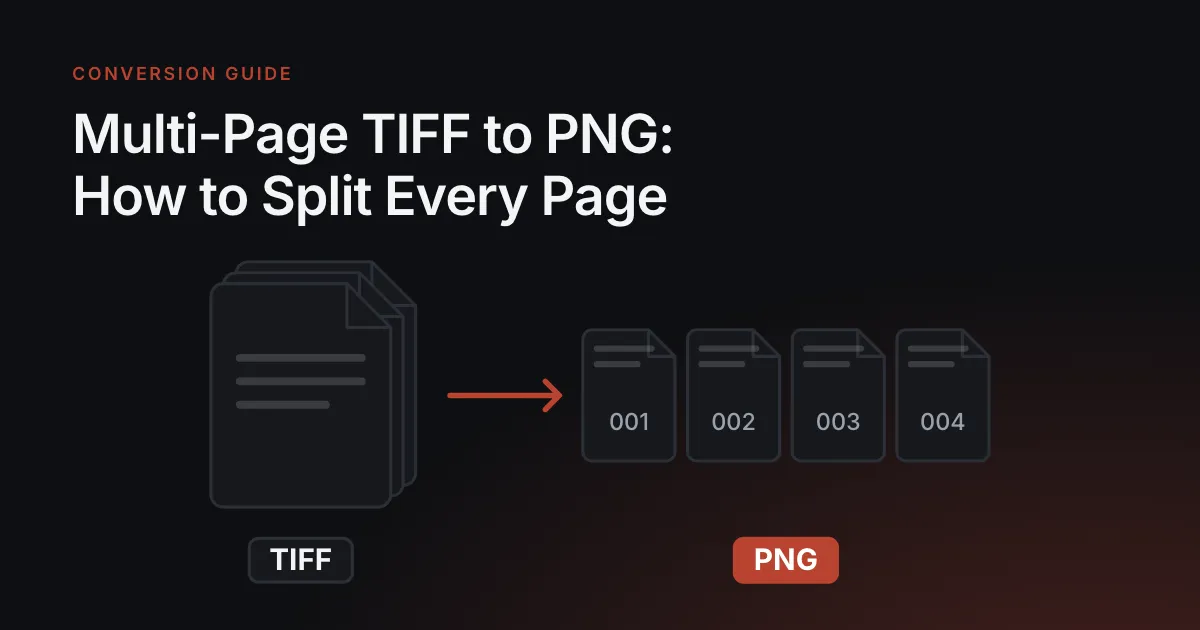
A multi-page TIFF becomes one PNG per page, named scan-001.png, scan-002.png,
and so on; the numbering and the page order are covered in multi-page TIFF to
PNG. Up to eight files convert in parallel, and a ticked selection
becomes one flat archive that keeps each card’s filename.
Why “without uploading” is a different requirement
Uploading is what a server-side converter does by design: the browser sends the file, the server converts it, and the browser downloads the result. That converter has to receive the file before it can change it.
The file being deleted after an hour does not undo the transfer. It was uploaded, it sat on someone else’s disk, and it was readable by that service for as long as the service kept it. For a holiday photo that is a fair trade. For a signed contract, a passport scan, a medical record or a bank statement, it is the part of the workflow the reader is trying to avoid.
Privacy is not the only reason. A managed work computer may block uploads, a large scan may hit a free tier’s size limit, and an air-gapped machine has no connection to upload over. The same local route answers all three.
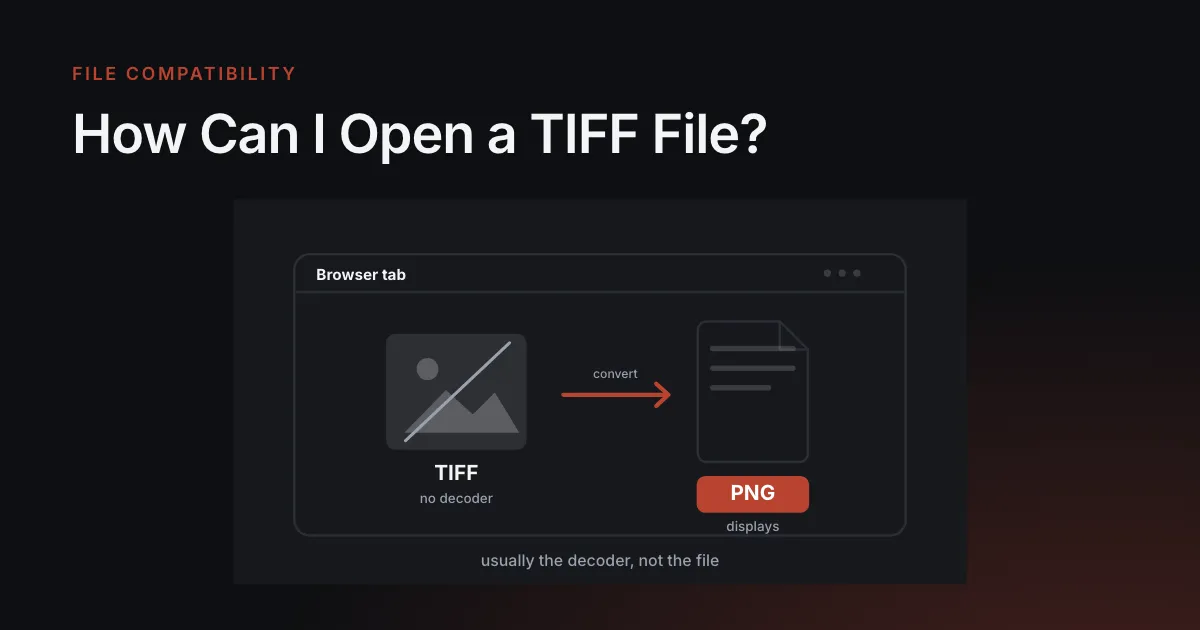
There is also a format reason the file needs to change at all. Chrome, Edge and Firefox do not display TIFF files, while Safari displays them natively (MDN image format guide). When a portal accepts PNG and not TIFF, the choice is not whether to convert, but where the conversion happens.
What local conversion means in practice
Local conversion means the decoding and encoding happen in software already running on your computer, so no network request carries the image. Client-side conversion is the browser version of the same idea: the code that reads the TIFF and writes the PNG runs in the tab.
TIFF is a container, and its specification treats compression as one of the tags inside it rather than as a single fixed method (TIFF 6.0 specification). PNG defines its image data as a stream that must decode back to the original samples, which is what makes a PNG lossless (W3C PNG specification). Moving an image from one container to the other is a translation of the same pixel values, and it does not need a server to happen.
We run the decoder and encoder in Web Workers with WebAssembly modules bundled inside our package, so the conversion has every piece it needs before a file is chosen. We built this extension around scanner output, faxes and multi-page archives, so a scanned document is the case we had in mind.
We ask for no browser permissions at all, and our pages carry a Content Security
Policy with connect-src 'none' and form-action 'none'. Browser permissions are
visible before install, because Chrome lists what an extension can reach (Chrome
permissions list).
The policy in the manifest is what actually forbids a request. A permission list
describes what an extension may reach; the policy is the part that closes the
network route.
Our tests also scan the source for networking calls, including fetch,
XMLHttpRequest, WebSocket and form submission.
Three ways to convert TIFF to PNG without uploading
There are three practical routes: a browser extension, a desktop application and a command-line tool. They differ in install weight, batch handling and how much control the conversion exposes.
| Route | Where the file is read | Install | Batch and pages | Fits |
|---|---|---|---|---|
| Browser extension | In the browser tab, in memory | One extension, no account | No limit on how many you add; up to 8 in parallel; one PNG per page; ticked files in one ZIP | Scanned documents headed for a portal, quick one-offs, files that must not leave the machine |
| Desktop application | In the application | Already installed, or a large install | Depends on the app; multi-page support varies | Design and print work, precise export settings, files that need editing |
| Command-line tool | In the shell process | Developer toolchain | Scriptable across a folder | Archives, developers, repeated jobs |
A browser extension is the lightest route for a Chrome user, because it adds one tab and no account. We convert several TIFF files to PNG in one run - up to eight in parallel. We turn a multi-page TIFF into one numbered PNG per page, and collect a ticked selection into a flat ZIP archive.
A desktop application is the better route when the file needs editing or a specific colour workflow. Preview on macOS, Photoshop and GIMP can all open a TIFF and export a PNG on the same machine. The cost is the install size and, for some of them, a licence.
ImageMagick and the libtiff-based command-line tools are the route for a folder of files and a script. They are precise and repeatable, and they expect the reader to be comfortable in a terminal.
Whichever route the reader picks, the claim that the file stays local is worth testing rather than accepting.
How to check that a converter really does not upload
A no-upload claim is checkable in three places. Check what a browser extension is allowed to reach, the network requests made during one conversion, and whether the conversion still works with the connection off. No one of them is proof; together they leave little room.
Check what the extension can reach before installing
Chrome shows what an extension can reach before it is installed. An extension that requests no permissions cannot read the pages you visit, your tabs or your history (Chrome permissions list).
That is a first filter, not proof: permissions describe reach, and an extension with none
can still be told to send a request. What forbids it is the Content Security Policy in the
extension’s manifest, connect-src 'none' here, which sits in the manifest inside the
installed package, where it can be read. The next two checks look at behaviour.
Watch the Network panel during a conversion
Open the converter in its own tab, open DevTools, choose the Network panel and clear it. Convert one file. A local conversion shows no request carrying the file, and the finished image arrives as a download rather than as a response (Chrome DevTools Network panel).
Read every request that appears when Convert is pressed - its address, its method and what it sends - rather than looking only for one the size of the file. An upload can be split into chunks or compressed, so its size need not match the TIFF’s. Requests for the page’s own scripts are not the image, but note where they go.
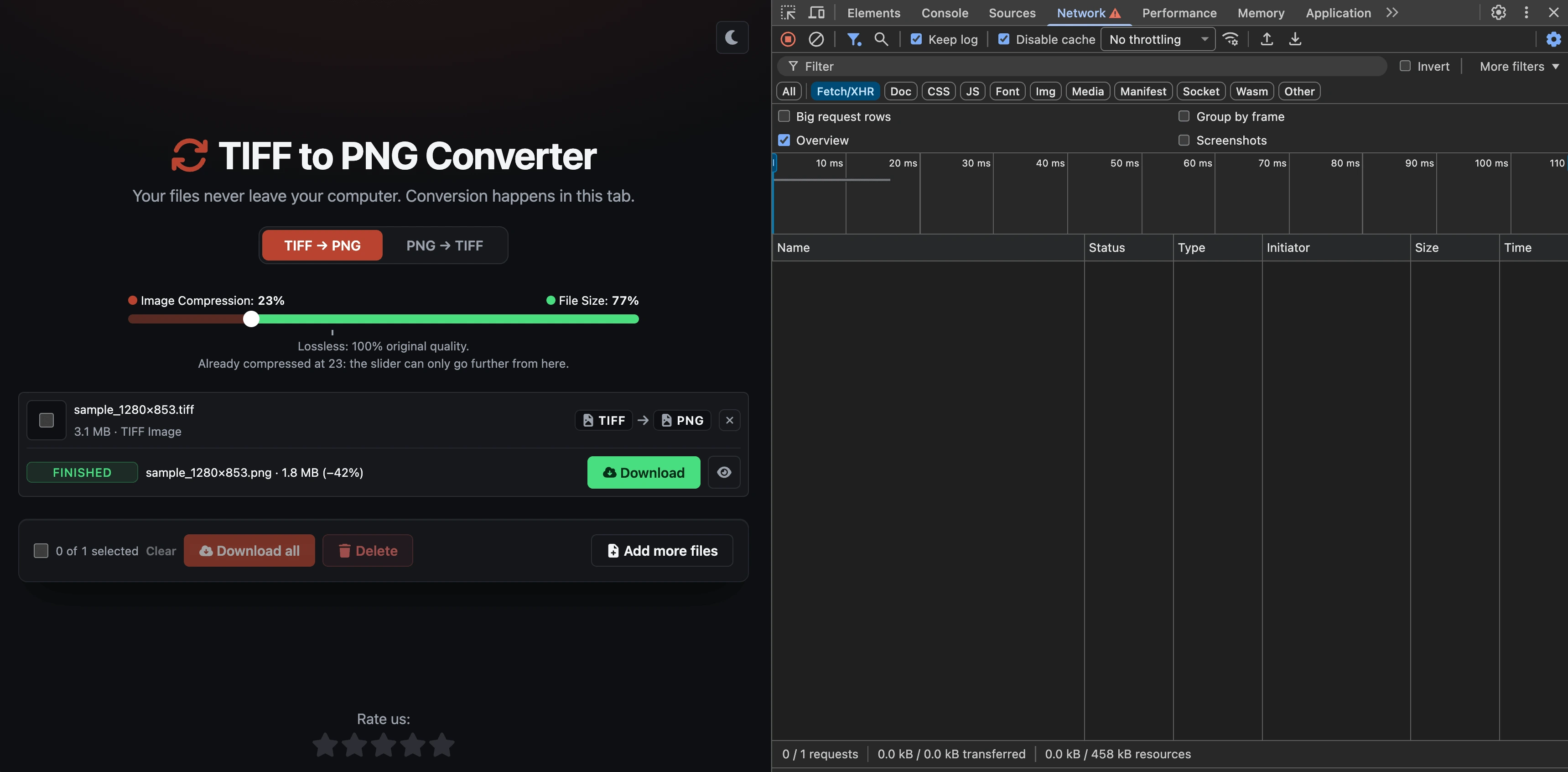
Convert with the connection off
Disconnect the network - turn Wi-Fi off or unplug the cable - and convert the same file again. A local converter finishes and downloads the PNG; a server-side converter fails at the first request. This is the simplest check and the hardest to fake, because a page cannot fetch what it cannot reach.
A cached page can still open offline, and a converter that works offline could hold the data and send it when the connection returns. Pair this with the Network panel and the policy above rather than relying on it alone.
What a no-upload claim can hide
| Claim on the page | What it can still mean | Check |
|---|---|---|
| Files are processed locally | The conversion may run locally, then the file or the result may still be sent somewhere | Network panel during the conversion |
| Files are deleted after an hour | The file was uploaded and stored for an hour | That is an upload, not an alternative to one |
| No account is required | The file can be uploaded without a login | Permissions and Network panel |
| Works offline | Only true if no step needs a server | Disconnect and convert |
Passing the permission, network and offline checks narrows the field to tools that genuinely work on the machine. It does not make the machine itself private.
What local conversion does not protect you from
Local conversion keeps the file off a server, and that is the whole of the promise. It does not lock the computer, encrypt the disk or control what happens to the downloaded PNG afterwards.
- A shared or managed computer. Anyone who can open the Downloads folder can open the PNG. We cannot change the permissions another account has.
- A synced Downloads folder. If Downloads syncs to OneDrive, Dropbox, iCloud Drive or a corporate drive, the finished PNG leaves the computer by that route. We did not upload it; the sync did.
- Other extensions. A different extension with broad site access can read what the browser shows. We request none, but the profile is shared.
- The source file. Saving a TIFF as a PNG produces a second file; it does not remove the first. If the TIFF is the only master, keep it.
- Damage inside the file. A local converter can refuse a truncated TIFF, but damage inside a compressed strip can decode without an error and still leave pixels wrong. The damaged-strip table shows how far that reaches.
- The website around the extension. This site loads Google Analytics; our extension does not. The privacy policy separates what the site collects from what we never collect.

The list of what local conversion cannot protect is uncomfortable on purpose. A privacy claim that promises more than it can deliver is the one that gets repeated and then fails.
What we do and do not do
We convert in the browser tab, and the two limits a large batch meets are the ZIP format’s ceiling and the browser’s memory.
One archive holds up to 4 GiB or 65,535 files, the limits of ZIP without ZIP64, which is the kind we write. Beyond either, take the files one at a time. We build the archive in the tab’s memory, so a batch near the tab’s limit can fail as one archive while the same files download individually.
For an ordinary 8-bit TIFF the conversion is lossless, and the PNG is usually smaller. One measured file went from 7.37 MB to 4.29 MB, and a Deflate-compressed TIFF went from 414 KB to 347 KB. A JPEG-compressed TIFF is the exception. JPEG already discarded detail, and the PNG has to store every pixel it is given; one measured file produced a PNG 107% larger. The lossless conversion guide explains the cases.
Our output is PNG and TIFF only. We do not produce PDFs or JPEGs, and we do not crop, rotate or resize. We run in Chrome; Firefox and Safari are not supported. With the connection off, our converter behaves exactly as it does online, because we make no network requests.
Final verdict - convert TIFF to PNG without uploading
To convert TIFF to PNG without uploading it, use a converter that runs on your machine and test the claim rather than trusting the adjective. Check three things: no request in the Network panel that carries the file, a policy in the manifest that forbids connections, and a conversion that finishes with the connection off. For a scanned document headed to a portal, that route leaves the TIFF as the master.